Node.js apps die. A database hiccup, an unhandled exception, a midnight server reboot — and your API is down until someone notices. PM2 is the fix: a battle-tested process manager that keeps your Node.js app alive, restarts it when it crashes, and even brings it back after a server reboot. In this guide you will install PM2 on Ubuntu, put your app under its control, enable cluster mode for better performance, and set up startup-on-boot and log rotation like production deployments use.
This tutorial is for anyone deploying a Node.js app on Ubuntu 22.04 or 24.04 — your own VPS, a cloud instance, or a homelab box.
Prerequisites
- A server or VM running Ubuntu 22.04 or 24.04 (any recent Ubuntu works).
- A user with sudo access.
- A Node.js app to manage — any
app.jsorserver.jsworks, even a hello-world Express server. - Basic comfort with the Linux terminal.
Step 1 — Install Node.js (20 LTS)
PM2 is itself a Node.js program, so Node.js must be installed first. Install the current LTS release from NodeSource rather than the outdated version in Ubuntu's default repos:
curl -fsSL https://deb.nodesource.com/setup_20.x | sudo -E bash -
sudo apt-get install -y nodejs
The first command adds the NodeSource repository for Node 20 to your system. The second installs Node.js and npm from it. Verify both installed correctly:
node -v && npm -vYou should see something like v20.18.0 and 10.8.2. If your app requires Node 22, just replace setup_20.x with setup_22.x in the first command.
Step 2 — Install PM2 globally
Install PM2 as a global npm package so the pm2 command is available everywhere on the system:
sudo npm install -g pm2The -g flag installs it globally. Confirm the install:
pm2 -vThis prints the installed PM2 version (6.x at the time of writing). You now have the process manager ready — no configuration needed yet.
Step 3 — Start your app under PM2
Move to your app's directory and start it with a friendly name. PM2 keeps running it in the background, detached from your terminal session:
cd /var/www/my-api
pm2 start app.js --name my-api
PM2 launches your app, assigns it process id 0, and shows a status table. The --name flag gives it a readable label — without it, the name defaults to the filename. Check that it is online:
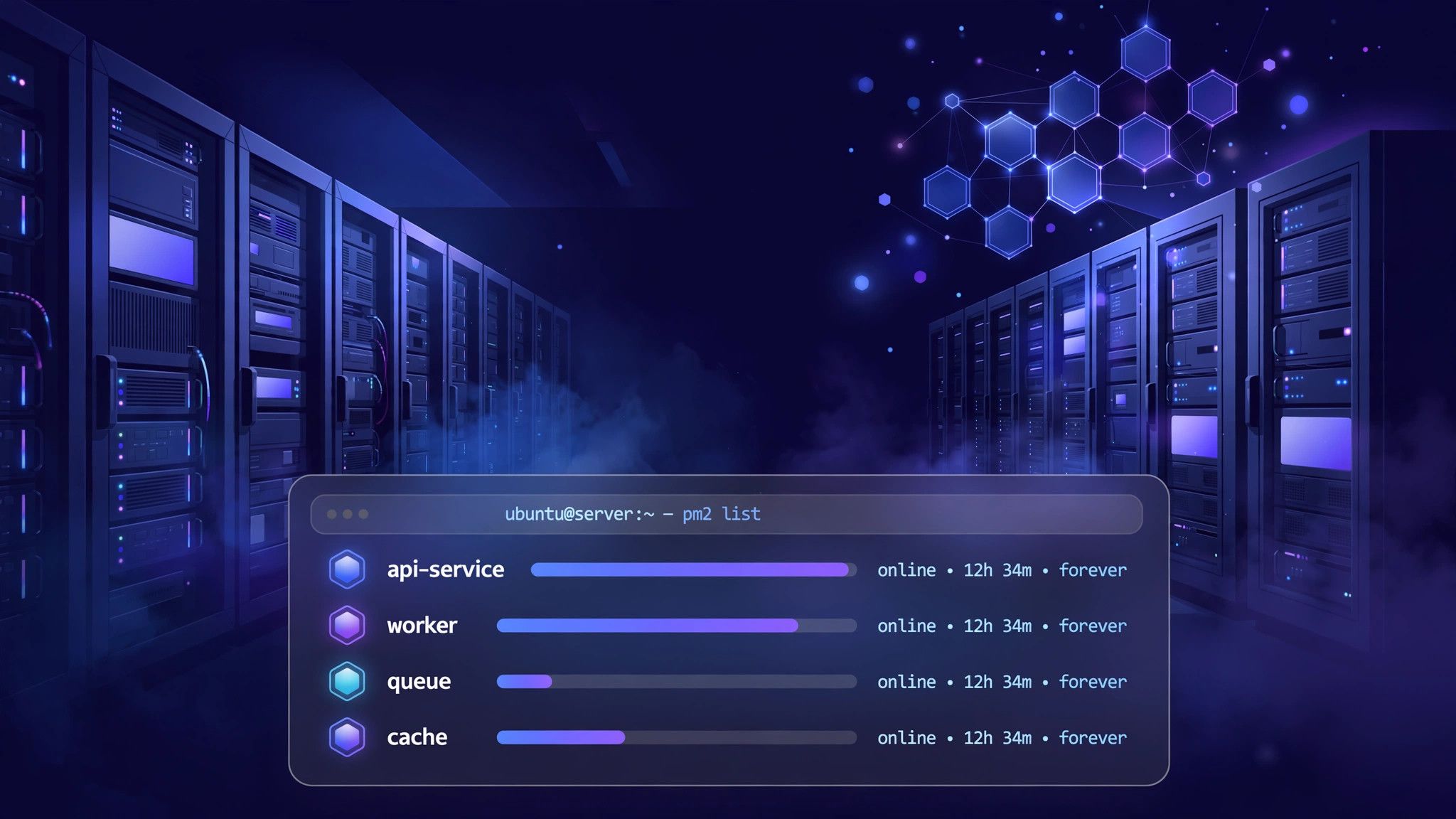
pm2 listpm2 list (or pm2 status) shows every managed process with its status, CPU and memory usage, and restart count. "online" means your app is running.
Kill your app process manually to test recovery: find its PID with ps aux | grep node and kill -9 it, then run pm2 list again. You will see the status stay "online" while the PID changes and the restart count increments — PM2 restarted it automatically.
Step 4 — Use cluster mode for real traffic
A single Node.js process uses one CPU core. On a multi-core server, cluster mode runs one instance per core behind an internal load balancer, multiplying throughput:
pm2 delete my-api
pm2 start app.js --name my-api -i max
The -i max flag tells PM2 to spawn as many instances as there are CPU cores. Watch them all appear in pm2 list. To fix a specific count (say, 4 workers on a 4-core box), use -i 4 instead.
Note: cluster mode works with HTTP servers out of the box. If your app binds to a specific IP/port, all workers share it through PM2's built-in load balancer — no code changes needed. Apps with heavy in-memory state (session stores, in-memory caches) should keep using fork mode (the default) or move state to Redis.
Step 5 — Make PM2 survive a server reboot
This is the step most tutorials skip, and it is the whole point of "running forever". First, tell PM2 to generate a startup script for your system:
pm2 startupPM2 detects systemd (Ubuntu's init system) and prints a sudo env PATH=... pm2 startup systemd -u youruser command. Copy and run exactly the command it prints — the PATH part matters, because PM2 installed via npm lives outside the default root PATH.
Now freeze your current process list so PM2 knows what to resurrect after boot:
pm2 saveThis writes the list of running apps to ~/.pm2/dump.pm2. On every future boot, systemd starts PM2, which restores every saved app. Test it: reboot the server and run pm2 list after it comes back up. Your app should be online without you touching anything.
Important: every time you start or delete an app, run pm2 save again, or the boot-time list will be stale.
Step 6 — Tame logs with rotation
By default PM2 appends all stdout/stderr to ~/.pm2/logs/ forever. On a busy API that fills disks fast. Install the log-rotate module:
pm2 install pm2-logrotate
pm2 set pm2-logrotate:max_size 10M
pm2 set pm2-logrotate:retain 7
The first command installs the module. The settings cap each log file at 10 MB and keep the last 7 rotated files. Tail logs live any time with:
pm2 logs my-api --lines 50This streams the last 50 lines and follows new output. For a quick health snapshot of everything, pm2 monit opens a terminal dashboard with CPU, memory, and event logs per process.
Step 7 — Lock it in with an ecosystem file (production best practice)
Instead of remembering long CLI flags, describe your app in an ecosystem.config.js file in your project root:
module.exports = {
  apps: [{
    name: 'my-api',
    script: './app.js',
    instances: 'max',
    exec_mode: 'cluster',
    env: {
      NODE_ENV: 'development',
      PORT: 3000
    },
    env_production: {
      NODE_ENV: 'production',
      PORT: 3000
    },
    error_file: './logs/err.log',
    out_file: './logs/out.log',
    log_date_format: 'YYYY-MM-DD HH:mm:ss',
    max_memory_restart: '500M',
    watch: false
  }]
};
This config runs your app in cluster mode, separates dev/production environments, writes dated logs to your project, and restarts any worker that exceeds 500 MB of memory (a classic leak guard). Start it with the production environment:
pm2 start ecosystem.config.js --env production
pm2 save
From now on, deploys are one command: pm2 restart my-api --update-env after pulling new code — the --update-env flag makes sure new environment variables take effect.
Verify it worked
Run this checklist on the server:
pm2 listshows your app with status online and restart count 0 (or low).curl http://localhost:3000(or your app's port) returns your app's response — proving the process actually serves traffic.pm2 logs my-api --lines 20 --nostreamshows your app's startup messages with no errors.systemctl status pm2-yourusershows the PM2 systemd unit as active — this is what brings everything back after a reboot.- (Optional but convincing)
sudo reboot, reconnect, and runpm2 list— your app should be online without any manual start.
Common issues & fixes
1. "command not found: pm2" after install
This happens when npm's global bin directory is not in your PATH, or when a different user ran the install. Find where it landed with npm bin -g and add that directory to your shell's PATH, or reinstall with sudo so it lands in /usr/local/bin, which is always on PATH.
2. App keeps restarting in a crash loop
Check pm2 logs my-api --lines 100. The usual culprits: a missing .env file, a port already in use (Error: listen EADDRINUSE — find the squatter with sudo ss -tlnp | grep 3000), or a module that is in devDependencies but never installed on the server. Fix the root cause, then pm2 restart my-api — the restart counter resets on a clean start.
3. pm2 startup ran, but nothing comes back after reboot
Almost always a missed pm2 save. The startup script restores only the saved dump. Start your apps, run pm2 save, then test with a reboot. Also check you ran the exact sudo command PM2 printed — hand-typing a different PATH breaks the unit.
4. EACCES permission errors on npm install -g
Never chmod 777 your npm directories. Either install with sudo npm install -g pm2 (fine on your own server), or configure a user-owned global prefix: npm config set prefix ~/.npm-global and add ~/.npm-global/bin to your PATH.
5. Disk filling up despite log rotation
Confirm the module is active with pm2 list — it should appear as a module entry. If you installed pm2-logrotate before any app started logging, settings still apply. Also check for stray logs outside ~/.pm2/logs/ if your ecosystem file points elsewhere, and consider shipping logs to a proper aggregator for anything beyond a small VPS.
That is PM2 end to end: install, start, cluster, auto-restart, survive reboots, rotate logs, and deploy with an ecosystem file. A Node.js app under PM2 with pm2 startup and pm2 save is genuinely set-and-forget — the server can crash, the app can crash, the power can go out, and everything comes back on its own.
If you are deploying Node.js for clients or your own products and would rather not babysit servers, XpertBees sets up and hardens production Node.js deployments — PM2, Nginx reverse proxies, SSL, and monitoring included. Get in touch and we will handle the DevOps while you ship features.