What is tmux and why should you use it?
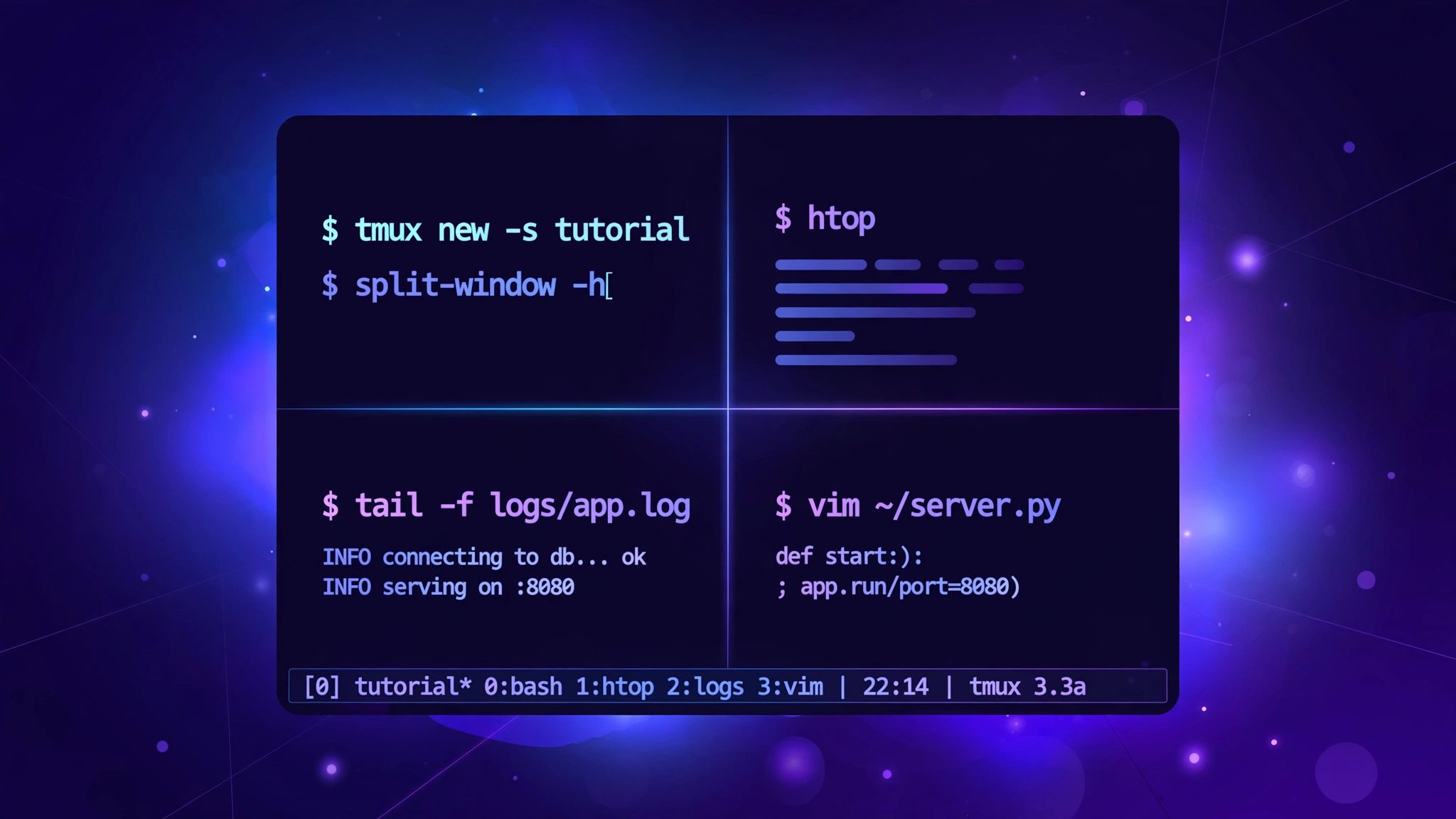
If you manage Linux servers over SSH, you have lived through this moment: you are halfway through a long database import or a deployment, your Wi-Fi blips, the SSH connection drops, and the half-finished process dies with the terminal. tmux — short for terminal multiplexer — fixes exactly this. It runs a persistent session on the server that survives disconnects, lets you split one terminal window into many panes, and lets you jump between several full-screen windows inside a single SSH connection.
By the end of this guide you will have tmux installed on Ubuntu, you will know how to create, detach, and reattach sessions, split panes, manage windows, and set up a comfortable configuration. A printable-style cheat sheet at the end covers every shortcut used in this tutorial.
Prerequisites
- A machine running Ubuntu 24.04 or 22.04 (desktop or server). These steps also work on Debian and most Debian-based distributions.
- A user account with sudo privileges.
- Basic comfort with the Linux terminal (opening it, running commands).
Step 1: Install tmux
tmux is not installed by default on Ubuntu, but it is in the standard repositories, so installation takes one command. First refresh your package lists, then install:
sudo apt update
sudo apt install -y tmux
The first command makes sure apt knows about the latest package versions; the second installs tmux non-interactively. Confirm it installed correctly by checking the version:
tmux -VYou should see something like tmux 3.3a. Ubuntu 24.04 ships tmux 3.3a and Ubuntu 22.04 ships tmux 3.2a — both are recent enough for everything in this guide.
Step 2: Start your first tmux session
Everything in tmux happens inside a session. Start one and give it a name so you can find it later:
tmux new -s webThis creates a session called web and attaches your terminal to it. The screen looks like an ordinary terminal, except for a green status bar at the bottom showing the session name ([web]) on the left. Almost every tmux shortcut starts with the prefix key, which is Ctrl+b by default: press Ctrl and b together, release, then press the command key.
Step 3: Detach and reattach — sessions survive disconnects
This is tmux's superpower. Press Ctrl+b, release, then press d:
Ctrl+b, then d (detach from the session)You are back at your normal shell, and tmux prints [detached (from session web)]. The session keeps running on the machine with everything inside it — long-running commands, editors, logs. List your sessions:
tmux lsYou will see web: 1 windows (created ...). Now reattach to it:
tmux attach -t webEverything is exactly as you left it. If you are connected over SSH and the connection drops, just SSH back in and run tmux attach -t web — or simply tmux attach to grab the most recent session. This is why sysadmins run every long task inside tmux.
Step 4: Split the screen into panes
Panes let you see several terminals side by side. Inside your session, split vertically with Ctrl+b then %, and split horizontally with Ctrl+b then ":
Ctrl+b, then %   (split into left/right panes)
Ctrl+b, then "   (split into top/bottom panes)
Move between panes with Ctrl+b followed by an arrow key. Try it: split into two panes, run htop in one and tail -f /var/log/syslog in the other (use sudo for the log), and you have a live monitoring dashboard. Close a pane by typing exit in it, or force-close the current pane with Ctrl+b then x (tmux asks for confirmation).
Step 5: Work with windows
Windows are like tabs: full-screen terminals you flip between. Create one with Ctrl+b then c:
Ctrl+b, then c   (new window)
Ctrl+b, then n   (next window)
Ctrl+b, then p   (previous window)
Ctrl+b, then 0-9 (jump to window by number)
Ctrl+b, then ,   (rename the current window)
Rename windows as you go (for example web, db, logs) — future you will thank present you. Press Ctrl+b then w for a visual list of all windows across sessions. The pattern most developers settle into: one window per task, several panes inside each window.
Step 6: Move, resize, and zoom panes
After a split, layouts rarely fit perfectly. Resize the active pane by holding Ctrl while pressing an arrow key after the prefix:
Ctrl+b, then Ctrl+Arrow (resize the active pane in that direction)Tap it repeatedly — each press grows or shrinks the pane by one cell (hold to repeat). Two more pane tricks worth learning early:
Ctrl+b, then z   (zoom: make the current pane fullscreen, press again to restore)
Ctrl+b, then {   (swap the current pane with the previous one)
Ctrl+b, then }   (swap the current pane with the next one)
Zoom is the one you will use constantly: Ctrl+b z expands a cramped log pane to fullscreen for reading, then the same keys shrink it back.
Step 7: Scroll back and copy text (copy mode)
Inside tmux, your terminal's normal scrollback stops working because tmux owns the screen buffer. Enter copy mode with Ctrl+b then [:
Ctrl+b, then [   (enter copy mode; use arrows or PageUp/PageDown to scroll)
q                (quit copy mode)
To make copying painless, switch tmux to vi-style keys (see the configuration step below). Then in copy mode: press Space to start a selection, move the cursor, press Enter to copy, and paste anywhere in tmux with Ctrl+b then ]. The copied text lives in a tmux buffer, so it pastes across panes and windows.
Step 8: Make tmux yours with a config file
tmux reads ~/.tmux.conf at startup. Create one with a few quality-of-life settings:
nano ~/.tmux.confPaste in the following:
# Reload this file with Ctrl+b then r
bind r source-file ~/.tmux.conf \; display-message "Config reloaded!"

# Enable mouse support (click panes, scroll, resize by dragging)
set -g mouse on

# Use vi-style keys in copy mode
setw -g mode-keys vi

# Start window numbering at 1 instead of 0
set -g base-index 1
set -g renumber-windows on

# Keep more scrollback history
set -g history-limit 50000

# New panes and windows open in the current directory
bind '"' split-window -c "#{pane_current_path}"
bind % split-window -h -c "#{pane_current_path}"
bind c new-window -c "#{pane_current_path}"
Save and exit nano (Ctrl+o, Enter, Ctrl+x), then reload the config from inside tmux with Ctrl+b then r. The mouse setting alone transforms the experience: click any pane to focus it, drag borders to resize, and scroll with the mouse wheel.
Verify it worked
Run this end-to-end test to prove your setup survives a disconnect:
tmux new -d -s verify 'while true; do date >> /tmp/tmux_verify.log; sleep 5; done'
tmux ls
The first command starts a detached session named verify that appends the date to a log file every five seconds. Now detach/attach or simply log out and back in, then check:
cat /tmp/tmux_verify.log
tmux kill-session -t verify
rm /tmp/tmux_verify.log
If the log kept growing while you were "away", tmux is working exactly as designed. The last two commands clean up the test session and the log file.
Common issues and fixes
1. "no server running on /tmp/tmux-..." or "failed to connect to server"
This usually means tmux is not installed on the machine you are running it on, or the TMPDIR environment variable points somewhere odd. Reinstall and try again:
sudo apt install -y tmux
echo $TMPDIR   # should be empty or a writable directory
2. Colors look wrong inside vim or htop
Your outer terminal advertises 256 colors but tmux defaults to a simpler terminal type. Add this to ~/.tmux.conf and reload:
set -g default-terminal "tmux-256color"If tmux-256color is not recognized (older systems), use screen-256color instead. Verify with echo $TERM inside tmux.
3. Mouse scrolling does not work
Mouse support is off by default. Add set -g mouse on to your config (included in Step 8) and reload with Ctrl+b then r. Some terminal emulators also need mouse reporting enabled in their own settings.
4. Ctrl+b feels awkward (or conflicts with another tool)
Many long-time screen users rebind the prefix to Ctrl+a. Add this to your config:
unbind C-b
set -g prefix C-a
bind C-a send-prefix
After reloading, every shortcut in this guide works with Ctrl+a instead of Ctrl+b.
5. My session is gone after a reboot
tmux sessions live in memory, so a reboot ends them — this is expected, not a bug. For true persistence across reboots, either run the critical command under systemd/a cron @reboot entry, or install the tmux-resurrect plugin, which can save and restore your exact pane layout after a restart.
tmux cheat sheet
Every shortcut from this guide in one place (^b = press Ctrl+b first):
SESSIONS
  tmux new -s name     start a named session
  tmux ls              list sessions
  tmux attach -t name  reattach to a session
  tmux kill-session -t name   kill a session
  ^b d                 detach (session keeps running)

PANES
  ^b %                 split vertically (left/right)
  ^b "                 split horizontally (top/bottom)
  ^b Arrow             move to pane in that direction
  ^b Ctrl+Arrow        resize the active pane
  ^b z                 zoom pane fullscreen / restore
  ^b x                 close the current pane

WINDOWS
  ^b c                 new window
  ^b n / ^b p          next / previous window
  ^b 0-9               jump to window by number
  ^b ,                 rename the current window
  ^b w                 list all windows
  ^b &             close the current window

COPY MODE
  ^b [                 enter copy mode (q to quit)
  ^b ]                 paste from the tmux buffer
  ^b ?                 show every keybinding
Conclusion
That is the complete tmux workflow: install it with apt, start named sessions, detach freely knowing your work survives disconnects, and organize with panes and windows. Add the configuration from Step 8 and the cheat sheet above, and within a day the shortcuts become muscle memory.
If your team spends hours in SSH sessions managing production servers, getting the setup right matters — XpertBees helps businesses with server setup, hardening, and DevOps automation on Ubuntu and cloud platforms. Reach out through the contact page and we will take the terminal toil off your plate.