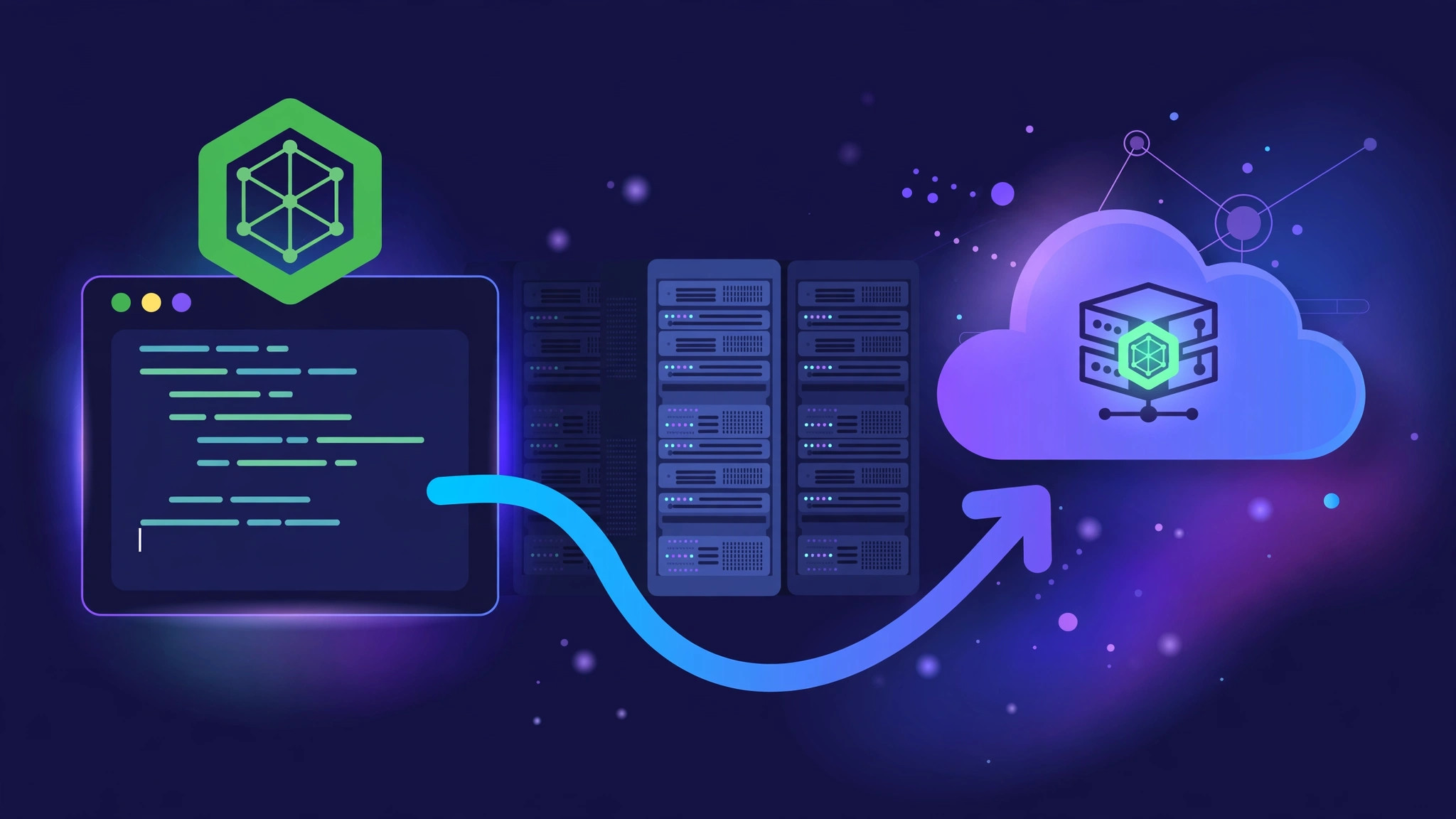
Getting a Node.js application out of your development machine and onto a real server is one of the most practical skills a web developer can have. In this guide you will deploy a working Node.js app on an Ubuntu 24.04 server, keep it running with PM2, and put Nginx in front of it as a reverse proxy so your app is served on standard ports 80 and 443 with HTTPS. This is the exact setup used by thousands of production Node.js sites, and by the end you will have it running on your own VPS.
Prerequisites
- A server running Ubuntu 24.04 (a small VPS with 1 GB RAM is enough for this tutorial).
- A non-root user with
sudoprivileges and SSH access to the server. - A domain name pointing to your server's public IP address via an A record (needed for the HTTPS step).
- Basic comfort with the Linux terminal.
Step 1: Update the server and install prerequisites
Start with a fresh, up-to-date system. Updating first avoids the classic problem where apt tries to install packages against stale package lists and fails.
sudo apt update && sudo apt upgrade -y
sudo apt install -y curl gnupg ufw
apt update refreshes the list of available packages, apt upgrade installs the latest security and bug-fix versions of everything on the system, and the last line installs curl (needed to fetch the Node.js installer), gnupg (for verifying package signatures), and ufw (the firewall).
Step 2: Install Node.js LTS
Ubuntu 24.04's default repositories ship an older Node.js. For production you want the current LTS release, and the reliable way to get it is the official NodeSource repository. This adds NodeSource's signed repository for the LTS line and installs Node.js together with npm.
curl -fsSL https://deb.nodesource.com/setup_24.x -o nodesource_setup.sh
sudo -E bash nodesource_setup.sh
sudo apt install -y nodejs
The first command downloads the NodeSource setup script, the second runs it to add the signed APT repository, and the third installs Node.js and npm. Verify the installation:
node -v
npm -v
You should see Node.js v24.x and npm 11.x (or newer). If node -v prints a version, the runtime is ready.
Step 3: Create your Node.js application
Create a directory for the app outside any user's home folder so it survives account changes, and make your user the owner so you never have to run the app as root.
sudo mkdir -p /var/www/myapp
sudo chown $USER:$USER /var/www/myapp
cd /var/www/myapp
Initialize the project and install Express, the most widely used Node.js web framework:
npm init -y
npm install express
npm init -y creates a package.json with defaults, and npm install express downloads Express into node_modules and records it as a dependency. Now create the app file, server.js:
const express = require('express');
const app = express();
const PORT = 3000;

app.get('/', (req, res) => {
  res.send('<h1>Hello from Node.js behind Nginx!</h1>');
});

app.get('/health', (req, res) => {
  res.json({ status: 'ok', uptime: process.uptime() });
});

app.listen(PORT, '127.0.0.1', () => {
  console.log(`App listening on 127.0.0.1:${PORT}`);
});
Notice the app binds to 127.0.0.1, not to every network interface. This is deliberate: only Nginx will talk to it, and Nginx will listen to the outside world. Start the app once manually to confirm it works:
node server.jsFrom another terminal (or a new SSH session), test it:
curl http://127.0.0.1:3000/healthYou should get back {"status":"ok","uptime":...}. Stop the manual process with Ctrl+C; we will restart it properly in the next step.
Step 4: Keep the app running with PM2
A Node.js process started by hand dies when you log out or when the server reboots. PM2 is a production process manager that restarts your app on crashes and on boot.
sudo npm install -g pm2
pm2 start server.js --name myapp
pm2 save
The first command installs PM2 globally, the second launches your app under PM2 with a friendly name, and pm2 save snapshots the process list so PM2 can restore it after a reboot. Next, make PM2 itself start on boot:
pm2 startup systemdThis prints one command to run with sudo; copy and run it exactly as shown. Then confirm everything:
pm2 status
pm2 logs myapp --lines 5
pm2 status should show myapp as online, and the logs should show the "App listening" line.
Step 5: Install and configure Nginx as a reverse proxy
Nginx will accept public traffic on ports 80 and 443 and forward it to your app on port 3000. This also gives you logging, connection handling, and easy TLS termination in one place.
sudo apt install -y nginx
sudo systemctl enable --now nginx
Now create a server block for your app. Replace example.com with your real domain:
sudo nano /etc/nginx/sites-available/myappPaste this configuration:
server {
    listen 80;
    server_name example.com www.example.com;

    location / {
        proxy_pass http://127.0.0.1:3000;
        proxy_http_version 1.1;
        proxy_set_header Upgrade $http_upgrade;
        proxy_set_header Connection 'upgrade';
        proxy_set_header Host $host;
        proxy_set_header X-Real-IP $remote_addr;
        proxy_set_header X-Forwarded-For $proxy_add_x_forwarded_for;
        proxy_set_header X-Forwarded-Proto $scheme;
        proxy_cache_bypass $http_upgrade;
    }
}
proxy_pass forwards every request to the Node.js app, and the proxy_set_header lines make sure the app sees the visitor's real IP and hostname instead of Nginx's. The Upgrade lines are what make WebSockets work through the proxy. Enable the site and remove the default one:
sudo ln -s /etc/nginx/sites-available/myapp /etc/nginx/sites-enabled/
sudo rm /etc/nginx/sites-enabled/default
sudo nginx -t
sudo systemctl reload nginx
nginx -t checks the configuration for syntax errors before reloading; never reload Nginx without a passing test.
Step 6: Open the firewall
Ubuntu ships with UFW installed but inactive. Allow SSH first so you do not lock yourself out, then allow web traffic:
sudo ufw allow OpenSSH
sudo ufw allow 'Nginx Full'
sudo ufw --force enable
sudo ufw status
Nginx Full opens both port 80 and 443. Your app port 3000 stays closed to the internet, which is exactly what you want.
Step 7 (optional but recommended): Add free HTTPS with Certbot
With your domain's A record pointing at the server, Certbot can fetch a free Let's Encrypt certificate and reconfigure Nginx for TLS automatically.
sudo snap install --classic certbot
sudo ln -s /snap/bin/certbot /usr/bin/certbot
sudo certbot --nginx -d example.com -d www.example.com
Answer the prompts (email address, agree to terms, whether to redirect HTTP to HTTPS; choose redirect). Certbot verifies your domain, installs the certificate, updates the Nginx server block, and sets up automatic renewal. Test renewal once:
sudo certbot renew --dry-runVerify it worked
Run these checks from your local machine or any machine with internet access:
curl -I https://example.com
curl https://example.com/health
The first command should return HTTP/2 200, proving HTTPS is terminating at Nginx, and the second should return your app's JSON, proving Nginx is forwarding to Node.js. On the server itself, confirm the services are healthy:
sudo systemctl status nginx --no-pager
pm2 status
Finally, open https://example.com in a browser: you should see "Hello from Node.js behind Nginx!". Reboot the server with sudo reboot, wait a minute, and check the site again. If it still responds, PM2 restored your app and Nginx restarted automatically. That is a production-grade deployment.
Common issues and fixes
502 Bad Gateway from Nginx
This is the most common deployment error and it means Nginx is up but cannot reach the app. Check that PM2 has the app online (pm2 status), that it listens on the same port as proxy_pass (ss -tlnp | grep 3000), and read the error details in sudo tail -n 20 /var/log/nginx/error.log.
App crashes on startup: "Cannot find module 'express'"
The dependency was never installed in /var/www/myapp. Run cd /var/www/myapp && npm install, then pm2 restart myapp.
Certbot fails with "Unable to verify domain"
The domain's A record must point to this server's public IP before you run Certbot, and port 80 must be reachable (check sudo ufw status). DNS changes can take a few minutes to propagate; verify with dig +short example.com.
App does not come back after a reboot
You ran pm2 start but skipped the startup steps. Run pm2 save to snapshot the process list, run pm2 startup systemd and execute the printed sudo command, then reboot to test.
Permission denied when editing /var/www files
The directory is owned by root. Fix ownership once with sudo chown -R $USER:$USER /var/www/myapp and do not run the app as root.
That is the complete pipeline: updated server, Node.js LTS, an Express app, PM2 keeping it alive across reboots, Nginx as a hardened reverse proxy, a locked-down firewall, and free automated HTTPS. It handles real traffic and is the same architecture behind countless production Node.js deployments. If you need help deploying, hardening, or scaling a Node.js stack on your own infrastructure, XpertBees handles server setup and DevOps for businesses every day.